



zplCloud Blog
A USB-Only GK420 as a Cloud Printer: Raspberry Pi, One Agent, Under 100 Euro
Buy Link-OS when you buy. Keep what works while it works. Both end up in the same platform.
The honest recommendation first
If you are buying a label printer today, buy a Zebra with Link-OS - ZD421, ZD621 or bigger. Cloud Connect / Weblink is built in, it has Wi-Fi, a faster printhead, 300-dpi and RFID variants, and remote firmware and settings management. Connecting it to zplCloud is a one-liner and it stays manageable for years.
That is not the question most workshops and small warehouses have. Theirs is:
"There is a GK420d on the packing table. It has printed shipping labels every day since 2014 and has never failed, but it only has USB. Do we have to scrap it to print from the cloud?"
No.
What these printers can and cannot do
The GK420d/GK420t, GC420, LP2844 and the older TLP series are mechanically excellent and simple: 203 dpi, direct thermal or thermal transfer, EPL2 and ZPL II. Millions are still in service.
They lack exactly one thing: connectivity. No Link-OS, therefore no Weblink and no Cloud Connect. Many are USB-only. From the cloud's point of view they do not exist.
They still have everything that costs money to replace: a working printhead, platen and media sensor - and a device your team already knows.
The parts
| Part | Cost | Note |
|---|---|---|
| Raspberry Pi Zero 2 W, 3, 4 or 5 | ~20–80 € | any 64-bit Raspberry Pi OS; a Zero 2 W handles one or two printers |
| PSU, microSD, USB cable | ~15 € | the printer's existing cable works (Pi Zero: micro-USB OTG adapter) |
| zplCloud CLI agent | included | Starter includes 1 remote printer agent, Pro 5 |
| Total | under 100 € | versus several hundred for a new Link-OS desktop printer |
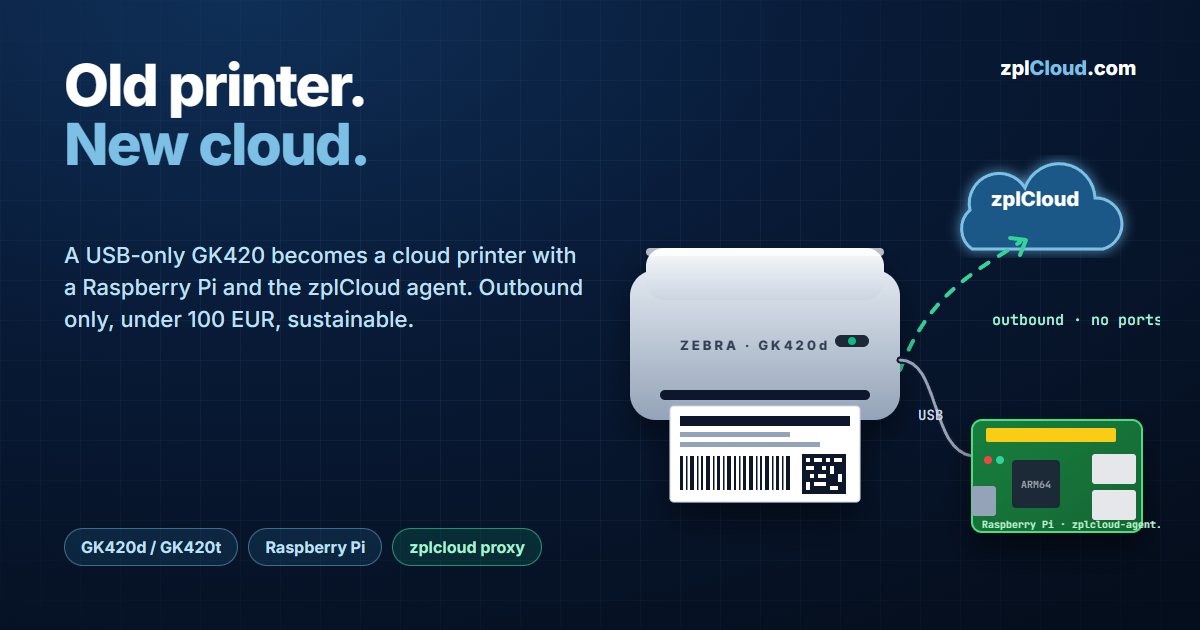
The agent draws single-digit watts, runs as a systemd service, reconnects by itself after a power cut, and needs no inbound ports, no VPN and no firewall change - it opens one outbound connection to api.zplcloud.com.
Setup, about 20 minutes
1. Prepare the Pi
Flash Raspberry Pi OS Lite (64-bit) with the Raspberry Pi Imager. Enable SSH and Wi-Fi in the imager's settings before writing the card, boot, log in.
2. Plug in the printer
lsusb
# Bus 001 Device 004: ID 0a5f:0084 Zebra Technologies ...
Vendor ID 0a5f is Zebra. That is the whole driver story - the agent talks to the printer over the USB printer class (libusb). No CUPS, no spooler, no vendor driver.
If nothing appears: use a data cable, not a charge-only one, and give a Pi Zero a powered hub if the printer draws more than the port provides.
3. Install the CLI
curl -fsSL https://zplcloud.com/install-cli.sh | sh
zplcloud --version
zplcloud usb list
The installer picks the right build: linux-arm64 for 64-bit Pi OS, linux-arm for 32-bit. usb list should show the Zebra printer-class device.
4. Print a test label from the Pi
zplcloud send --usb --zpl "^XA^FO50,50^A0N,32,32^FDHello from the Pi^FS^XZ"
If a label comes out, the hardware side is finished.
If nothing happens, check the language mode. A GK420 can be running EPL2, in which case ZPL arrives as text and is ignored. The configuration label tells you which mode is active. USB access also needs permissions - sudo is fine for the test; for the service, a udev rule giving the device to a group is the clean fix.
5. Run the agent as a service
Create an API key in the platform (API tab), then:
sudo zplcloud proxy --agent "Packing table Pi" --service-install --api-key sk_zplcloud_xxxx
systemctl status zplcloud-agent
journalctl -u zplcloud-agent -f
This installs zplcloud-agent.service with Restart=always. The Pi now connects at boot and forwards every job to the USB printer.
Docker works too: map /dev/bus/usb into the container and set ZPLCLOUD_API_KEY and ZPLCLOUD_AGENT (see docker-compose.agent.yml). One Pi can serve several USB printers and LAN printers on TCP 9100 at the same time.
6. Print from anywhere
The agent appears in Remote Printers with its USB printer, and from there it is a normal zplCloud printer: designer, REST API, batch jobs from CSV/JSON, Kafka or SQL data sources, Print Views for the packing crew, queue with retries, webhooks on success or failure.
Three things to know about old printers
Fonts. A GK420 has a few megabytes of flash. The 11 MB ZPLCloud Unicode font does not fit and the 7 MB slim variant is tight. Check before you push anything:
zplcloud send --usb --zpl '! U1 getvar "memory.flash_free"'
Use Liberation Sans (0.4 MB) for accented Latin text, or let zplCloud render the text as a graphic - the designer does that automatically for text fields in image mode. For CJK on a GK420, image mode is the answer. An icon font built from SVGs is only a few KB and fits comfortably.
Resolution and speed. 203 dpi, about 4 ips. Fine for shipping, product and shelf labels; not for dense 2D codes on small electronics.
No RFID, no 300 dpi, no Wi-Fi in the printer. If you need those, that is the moment to buy new - and the switch is cheap, because designs, bindings, Print Views and API calls stay identical. Only the printer entry changes.
Why keeping it is the defensible answer
A working printer in a skip is the worst outcome available: the embodied energy of the mechanics and electronics, plus the shipping of a replacement. A GK420 that still prints well needs a printhead every few years - a spare part, not a new device. The Pi adds roughly the consumption of an LED bulb.
Buy Link-OS when you buy. Keep what works while it works. zplCloud treats both the same.