



zplCloud Blog
Online ZPL Viewer: Preview, Lint and Verify ZPL Labels Before They Print
A picture of a label is only the first of four checks. How to render ZPL at the right resolution, catch broken code, prove that the barcode scans and ask the printer itself - free in the browser, and as an API for your build.
A preview is only the first of four checks
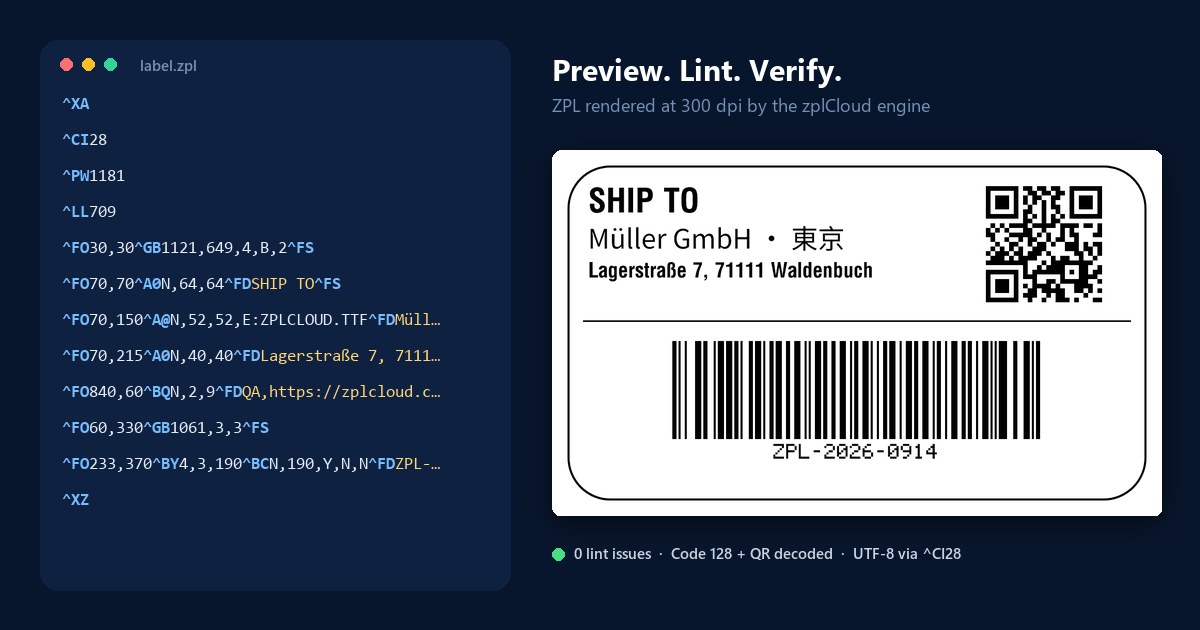
ZPL was never meant to be read by people. It is a stream of commands for a thermal printer: ^FO moves the pen, ^A0 picks a font, ^BC draws a Code 128, ^XZ ends the label. Reading ^FO840,60^BQN,2,9 and seeing a QR code in the top right corner takes practice, and even experienced developers get it wrong at the moment it hurts most - when a roll of labels is already coming out of the printer.
That is why everyone reaches for an online ZPL viewer first. Paste the code, look at the picture, done.
Except that the picture answers only one question. A label that looks right can still fail in three ways a viewer will not show you: the code contains a mistake that one printer forgives and the next one does not, the barcode carries the wrong data or cannot be scanned, or the printer on the shipping desk renders something different from any emulator because of its firmware, fonts or resolution.
So instead of "a viewer", think in four checks. Each one answers a different question. On zplCloud the first three are free website tools that need no account, the fourth lives in the label designer:
| Check | The question it answers | Tool |
|---|---|---|
| 1. Render | What will the label look like at this resolution? | ZPL to PNG, ZPL to PDF, ZPL to SVG |
| 2. Lint | Is the code correct, complete and portable? | ZPL Linter, ZPL Analyser |
| 3. Verify | Does the barcode decode, and is the data inside it valid? | Check Barcode |
| 4. Printer truth | What does this printer make of it? | Real Printer Preview in the label designer |
The label at the top of this post went through all four: rendered at 300 dpi by the zplCloud engine, 0 errors, 0 warnings, 0 hints in the linter, and both the Code 128 and the QR code decoded back from the rendered image. That is the standard this guide works towards.
Preview a ZPL label in 30 seconds
No account, no download, no printer:
1. Open ZPL to PNG (or ZPL to PDF for files with several labels).
2. Paste your ZPL.
3. Pick the resolution of the printer that will actually print it: 203, 300 or 600 dpi.
4. Leave width and height empty unless you need to override them, and render.
Three details that save a lot of guessing:
- The label size comes from your code. If width and height are left empty, the size is read from
^PW(print width) and^LL(label length) and converted with the dpi you chose. Only if both are missing does the tool fall back to 75 x 50 mm. A preview that looks cropped is often a missing or wrong^PW, not a rendering problem. - PDF shows every label, PNG and JPG show the first one. A ZPL file from a carrier or an ERP export often contains dozens of
^XA ... ^XZblocks. ZPL to PDF renders one page per label, so you can scroll through a whole batch; the image formats are for a quick look at a single label. - Same engine, same result. The tools use the rendering engine of the zplCloud platform, the one that also produces the designer preview. What you check in the browser is not a separate approximation.
Dots, not millimetres: the resolution trap
The single most common reason a label "looked fine in the viewer" and printed wrong is resolution. ZPL coordinates are dots, and a dot has a different physical size on every printer class:
| Resolution | Dots per mm | ^PW for a 100 mm wide label | 1 dot is |
|---|---|---|---|
| 203 dpi | 8 | ^PW812 | 0.125 mm |
| 300 dpi | 11.8 | ^PW1181 | 0.085 mm |
| 600 dpi | 23.6 | ^PW2362 | 0.042 mm |
The same ^FO and the same ^A0N,40,40 therefore produce a label about a third smaller when a template written for 203 dpi is sent to a 300 dpi printer: 812 dots are 101.6 mm on the first and 68.8 mm on the second. Text shrinks, barcodes get denser, and a layout that filled the label now sits in its top left corner.
Two habits prevent this:
- Always preview at the dpi of the target printer, not at whatever the tool defaulted to. If a template has to serve both 203 and 300 dpi printers, render it at both.
- Do the arithmetic once, not by eye. The DPI Calculator converts millimetres, inches, dots and points at any resolution - label size, font height and barcode module width in one place. The guide to label size in ZPL explains how
^PW,^LLand the media settings interact.
Lint before you print
A renderer is forgiving by design: it tries to draw something. A printer is forgiving too, but differently, and that difference is where production problems come from. A missing ^FS that one firmware tolerates swallows the next field on another. A field placed at x = 900 on an 812-dot label is simply not there. Nothing in a picture tells you that the picture is the lucky case.
The ZPL Linter reads the code the way a strict printer would and reports every finding with severity (error, warning, info), line and column, and a concrete fix. It currently checks 36 rules in nine categories, for example:
| Category | What it catches | Typical fix |
|---|---|---|
| Structure | no ^XA or ^XZ, nested ^XA, commands after the final ^XZ, a field not closed with ^FS | close every field, one label per ^XA ... ^XZ |
| Layout | ^FO beyond ^PW or ^LL, negative origins, two fields at the same origin | fix coordinates, check ^PW/^LL against the media |
| Data | non-ASCII text without ^CI, unescaped ^ or ~ inside field data, empty ^FD | add ^CI28, use ^FH with hex escapes |
| Font | a stored font that is used but never downloaded in the job, typos in font file names | download the font or reference the right E: file |
| Barcode | EAN/UPC length and check digit, invalid characters for Code 39, Codabar, MSI, Interleaved 2 of 5 and others, empty barcode data, very long QR payloads | correct the data before it reaches the printer |
| Graphics | ^GFA with invalid hex or a length that does not match its header, stored graphics that are never downloaded | regenerate the graphic, download it in the job |
| Hardware | print speed out of range, darkness below 0 or above 30, labels longer than 24 inches | use values the printer supports |
| Portability | Zebra-proprietary commands | matters when the same ZPL goes to non-Zebra printers |
| Performance | more than 150 fields in one label | split or simplify the label |
The findings can be downloaded as a PDF report, which is useful when the ZPL comes from a supplier or a carrier integration and someone else has to fix it. For Amazon FBA labels there is an additional amazon-fba profile with nine rules specific to those labels.
One honest limit, and the reason the four checks belong together: a linter checks where a field starts, the render shows where it ends. A 40-character text at a valid origin can still run off the label. Lint and preview, not lint or preview.
When the question is less "is it correct?" and more "what does this file actually do?", the ZPL Analyser explains the commands in a job, reads out label size, resolution, speed and darkness, and estimates print, network and render time for 1 up to 10,000 labels.
Text that survives the trip: encoding and fonts
Umlauts that turn into question marks and Asian characters that print as empty boxes are the second classic. The preview often looks perfect, because the viewer has the fonts; the printer does not. Three commands decide the outcome:
^CI28switches field data to UTF-8. Without it, anything outside plain ASCII is interpreted in the printer's default code page. Put it right after^XA. The linter flags non-ASCII text without^CIfor exactly this reason. Details: ^CI reference.^FHescapes characters that ZPL would otherwise treat as commands. A^or~inside^FDends the field or starts a command. With^FHin front of the field,_5Eprints a caret and_7Ea tilde. Details: ^FH reference.^A@selects a TrueType font by file name, for example^A@N,52,52,E:ZPLCLOUD.TTF. The built-in^A0covers Latin text; for Cyrillic, Greek, CJK, Hangul, Arabic, Hebrew, Thai or Devanagari you need a font that contains those glyphs.
zplCloud ships its own open-licensed font for this, ZPLCLOUD.TTF, with more than 42,500 code points across those scripts. The label above uses it for "Müller GmbH · 東京". Two points that previews do not show:
1. The font has to be on the printer. A viewer that has the font renders the text even if the printer has never seen the file. On the printer, the field then falls back to another font or prints nothing. Make sure the TTF is on the E: drive, and let the linter warn you about fonts that are referenced but not downloaded in the job.
2. Right-to-left and complex scripts need shaping. On Link-OS printers, ^PA switches on bidirectional text and character shaping for scripts such as Arabic and Devanagari (^PA reference). In our tests on real printers the shaping applied to plain fields, not to text inside a ^FB field block - worth checking on your model before you rely on wrapped Arabic text.
More on fonts in the ZPL fonts guide.
Barcodes: looking right is not scanning right
A rendered barcode is a picture of stripes. Whether a scanner can read it, and whether what it reads is correct, are two separate questions - and both are more important than the picture.
Can it be read? Most scanning problems come from geometry, not from the data:
- Module width.
^BYsets the width of the narrowest bar in dots. At 203 dpi one dot is 0.125 mm, which is too fine for many scanners; two dots or more is the safer choice. See the ^BY reference. - Quiet zone. Linear codes need empty space on both sides. For Code 128 the rule of thumb is ten times the module width. A barcode placed flush against the label edge or a box line can fail even though it looks perfect.
- Resolution. A code that is dense but readable at 600 dpi can collapse at 203 dpi, which is one more reason to preview at the dpi of the real printer.
Is the data right? A barcode can decode perfectly and still contain a wrong check digit, an invalid GS1 application identifier or an expiry date in the wrong format.
Check Barcode covers both. Upload a rendered label, a scan or a photo from the warehouse, and it decodes up to eight codes per image and then checks what is inside: GS1 application identifiers, check digits, lengths, character sets, dates and separators. You can also paste data directly if you only want to validate the content. For the label at the top of this post it read ZPL-2026-0914 from the Code 128 and https://zplcloud.com from the QR code - rendered, not printed, and still verified.
If a barcode already fails at the scanner, why a ZPL barcode does not scan walks through the usual causes.
Ask the printer itself
Every emulator, including ours, is an interpretation of ZPL. The printer's own firmware is the reference. Firmware versions differ, stored fonts and graphics differ, and some behaviour is simply model specific.
That is why the zplCloud designer has a third preview tab next to PDF and SVG: Real Printer Preview. It sends the ZPL to the printer's built-in web interface and asks the firmware to render the label as an image - without printing it. You see what that exact printer, with its fonts and its firmware, would produce.
- For printers the server can reach directly, the preview goes straight to the printer.
- For printers behind a firewall, the request runs through the zplCloud CLI agent in the local network, so no inbound connection is needed.
- When the preview matches, the same tab can print the label, with quantity and label home offset.
Use it for the step that decides whether a template goes live: the first label on a new printer model, a firmware update, or a template that uses stored fonts or graphics.
From one label to every commit: the same checks as an API
Checking a label by hand is fine for one template. It does not scale to a hundred SKUs, three printer resolutions and a release every week. That is where most viewers stop - and where the checks become valuable, because a broken template is caught before it reaches production instead of at the packing bench.
Every tool on the website is also available as an API endpoint under https://api.zplcloud.com/v1/tools/, with the same engine and the same rules. A lint step in a build pipeline takes a few lines:
# Fail the build if the template has lint errors
zpl=$(jq -Rs . < templates/shipping-label.zpl)

result=$(curl -s -X POST https://api.zplcloud.com/v1/tools/zpl-linter \
  -H "X-API-Key: $ZPLCLOUD_API_KEY" \
  -H "Content-Type: application/json" \
  -d "{\"zpl\": $zpl, \"dpi\": 203}")

echo "$result" | jq -r '.issues[] | "\(.severity) \(.code) line \(.line): \(.message)"'
test "$(echo "$result" | jq '.errorCount')" -eq 0
The response contains clean, errorCount, warningCount, infoCount and an issues list with severity, code, category, message, line, column and fix. In the same way, /v1/tools/zpl-to-pdf renders a proof PDF with one page per label for the review, and /v1/tools/check-barcode decodes the barcodes from a rendered PNG.
Practical details: the tool endpoints accept up to 2,000,000 characters of ZPL, they are not rate-limited (each call counts as a render in your usage statistics), and they are documented in the tool API reference.
And when the step after "the label is correct" is "print ten thousand of them", the same platform takes over: designs with data binding, batch rendering, print views for the shop floor and printing over Weblink or the CLI agent. The checks in this guide are simply the first part of that path.
ZPL and ZPL II in 2026: what actually matters
You will still find comparisons of "ZPL" and "ZPL II" in tables. For anything you write today the distinction is mostly historical: current Zebra printers speak ZPL II, and when people say "ZPL" they mean ZPL II.
The compatibility questions that decide whether a label prints correctly are different ones:
- Resolution of the target printer (see above).
- Fonts and graphics stored on the printer, which a viewer does not know about.
- Firmware features, for example text shaping with
^PAon Link-OS printers. - Vendor extensions, if the same ZPL also goes to printers from other manufacturers that emulate ZPL. The linter's portability rule flags Zebra-proprietary commands for this case.
Is it safe to paste production ZPL?
Real labels contain real data: customer names, addresses, order numbers. So the question is fair.
- The website tools process your ZPL in memory for the duration of the conversion and do not store it. The same applies to images uploaded to Check Barcode.
- zplCloud runs on servers located in Germany.
- For the API you use your own key, so calls are attributed to your account, not to an anonymous session.
- If data must not leave your network at all, the platform can run as a container in your own environment, with the CLI agent connecting printers locally.
The free website tools have fair-use limits for anonymous use (50,000 characters of ZPL per request and a request limit per minute and hour). Signed-in users get higher limits, and the API tools have none.
A release checklist for ZPL templates
Before a template goes live, or after anything about it changes:
1. Render at the target dpi - every resolution the template will be printed at.
2. Check ^PW and ^LL against the real media, so the preview size is not a coincidence.
3. Lint: zero errors, and every warning either fixed or understood.
4. Look for text that runs off the label, especially with the longest realistic data, not the sample.
5. ^CI28 for anything non-ASCII, and the TrueType font actually on the printer.
6. Decode every barcode from the render and check its content, including check digits and GS1 data.
7. Keep quiet zones and a module width the scanners on site can read.
8. One Real Printer Preview on each printer model and firmware in use.
9. Automate steps 1, 3 and 6 in the build, so the next change is checked without anyone remembering to.
FAQ
What is a ZPL file?
A plain text file with commands in Zebra Programming Language. Each label starts with ^XA and ends with ^XZ; in between, commands position fields and define text, barcodes and graphics. File extensions vary (.zpl, .txt, .prn), the content is what counts.
Do I need a printer to preview ZPL?
No. The website tools render ZPL to PNG, JPG, PDF or SVG without any printer. A printer is only needed for the last check, the Real Printer Preview, which shows how a specific printer's firmware renders the label.
Why does my label look right in the viewer but print wrong?
The most common causes are a different resolution (203 vs 300 dpi), a wrong or missing ^PW/^LL, a TrueType font that exists in the viewer but not on the printer, and text encoding without ^CI28. The resolution table and the linter in this guide cover all four.
Can I preview a file with many labels?
Yes. ZPL to PDF renders one page per ^XA ... ^XZ block. PNG, JPG and SVG show the first label.
Which resolutions are supported?
The website tools render at 203, 300 and 600 dpi, the resolutions of common Zebra printers. The label designer also accepts custom values.
Does the viewer check whether my barcode scans?
The preview shows the barcode; Check Barcode proves it. Upload the rendered image or a photo, and it decodes the codes and validates check digits and GS1 data.
Can I check ZPL automatically in CI/CD?
Yes. All tools are available under https://api.zplcloud.com/v1/tools/ with an API key. The linter returns an errorCount you can fail a build on, and zpl-to-pdf produces a proof PDF for review.
Is my ZPL stored when I use the online tools?
No. The website tools process the content in memory for the conversion and do not keep it.
Is it free?
The website tools are free and need no account, with fair-use limits for anonymous use. The API tools require an API key; see pricing for the plans.
What if I do not have ZPL yet, only a design idea?
Start in the label designer or from one of the templates. The designer generates the ZPL and runs the same previews while you work.
Try it with your own label: paste it into ZPL to PNG, run the linter, and decode the result with Check Barcode. Three tabs, no account - and you will know more about that label than any single preview could tell you.