



zplCloud Blog
Deutsche Post INTERNETMARKE as ZPL: Buy Real Postage from the API and Print It on a Zebra
Your DHL credentials, your Portokasse, your printer. POST a recipient, get a 203-dpi stamp back as ZPL or PDF.
A stamp is just another label
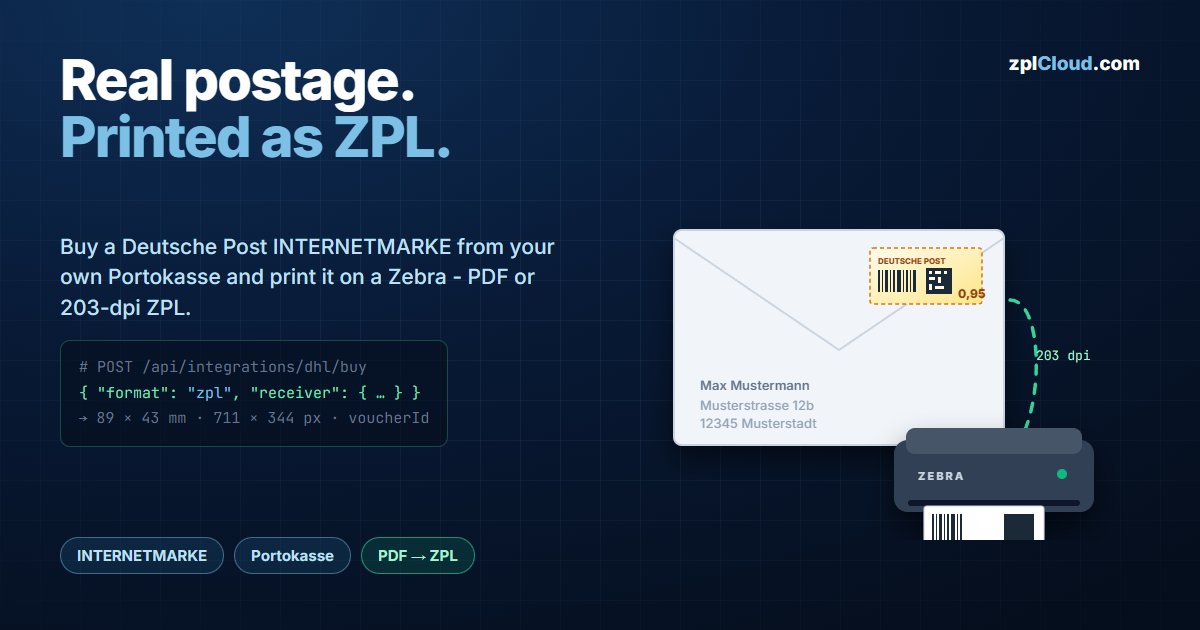
Shops, repair desks and logistics teams send single letters every day: a manual with an invoice, a return slip, a registered letter. The last physical step is postage - which usually means a franking machine, a drawer of pre-printed stamps, or a walk to the machine.
The INTERNETMARKE integration buys the real, legally franked stamp through your own DHL developer credentials against your own Portokasse, and hands it back in two formats:
- PDF - the official stamp document, 43 × 89 mm, auto-rotated.
- ZPL - the same stamp rasterized at 203 dpi (711 × 344 px), ready for a Zebra.
zplCloud does not resell postage. Every purchase debits your Portokasse at the current PPL price; there is no markup, no rounding and no pre-bought stock.
One-time setup
Integrations → DHL Internetmarke:
1. Credentials - DHL Developer Portal API key and secret, plus your Portokasse login (e-mail and password, max. 22 characters). The REST application must be approved once in the Portokasse frontend under My data → Business applications. Skip that and every call returns 401 genericUserAuthenticationError - the credentials are fine, the app just is not enabled.
2. Senders - one or more sender addresses; mark one as default.
3. Product - the letter product to buy.
| Product | Price |
|---|---|
| Standardbrief | € 0.95 |
| Kompaktbrief | € 1.10 |
| Großbrief | € 1.80 |
| Maxibrief | € 2.90 |
| Standardbrief + Einschreiben Einwurf | € 3.30 |
| Standardbrief + Einschreiben | € 3.60 |
| Großbrief + Einschreiben Einwurf | € 4.15 |
Check validates the credentials and shows the current Portokasse balance. The API secret and the Portokasse password are stored server-side and never sent back to the browser.
Two APIs, and which one you want
There are two entry points. They do the same thing but authenticate differently, and mixing them up is the most common integration mistake:
| Session API | Public API | |
|---|---|---|
| Path | /api/integrations/dhl/… | /v1/integrations/dhl/… |
| Auth | logged-in session (same-origin) | API key |
| Use it for | the platform UI, same-origin calls | your own backend, scripts, ERP |
Buy a stamp (public API):
curl -X POST https://api.zplcloud.com/v1/integrations/dhl/stamp \
  -H "X-Api-Key: sk_zplcloud_…" -H "Content-Type: application/json" \
  -d '{
        "format": "zpl",
        "receiver": { "name": "Max Mustermann",
                      "addressLine1": "Musterstrasse 12b",
                      "postalCode": "12345", "city": "Musterstadt",
                      "country": "DEU" }
      }'
senderId is optional - the default sender is used when you omit it. The response carries the ZPL, the geometry, the DHL identifiers for your records and the new balance:
{
  "ok": true, "format": "zpl",
  "zpl": "^XA^FO…^XZ",
  "widthMm": 89, "heightMm": 43,
  "widthPx": 711, "heightPx": 344,
  "walletBalanceCents": 12220,
  "voucherId": "VH-4f2a9c…",
  "shopOrderId": "1000023456"
}
format: "pdf" returns the original stamp PDF as base64 instead.
Before you buy, check what you can buy:
GET /v1/integrations/dhl/status    # balance + product catalog
GET /v1/integrations/dhl/stamps    # your transactions incl. voucher IDs
Read status before a batch. A purchase against an empty Portokasse fails at DHL, and the failed attempt is what you will find in the log afterwards.
Print Views: no API client on the packing table
For a shipping counter you do not want an integration on every desk. A DHL Print View needs no label design at all - the stamp is the label. It gets its own URL:
https://print.zplcloud.com/d/dhl/{slug}
Mobile-first, installable as a PWA, with a lookup field, sender dropdown, recipient form and printer selection.
Wiring the order database
Run the CLI agent on a machine in your network. The SQL Server connection string stays there:
zplcloud proxy --agent "Lager" \
  --sql ORDERS="Server=127.0.0.1;Database=erp;User Id=zplcloud;Password=…;Encrypt=True;TrustServerCertificate=True"
Create the datasource (Data sources, type SQL Server, server ORDERS) with a base query:
SELECT orderId, nachname, vorname, strasse, plz, ort
FROM auftraege
WHERE orderId LIKE @p0
Then map the columns in the Print View editor under DHL: the order-ID column (default orderId) is what the typed value is matched against, and the receiver fields take name, street, ZIP and city. The name may combine columns: vorname+nachname.
What the operator does
Type 10042 → Lookup → the agent runs the query and the recipient fields fill in → pick sender and printer → Buy & print:
1. the stamp is bought through your Portokasse,
2. the PDF is converted to ZPL at 203 dpi,
3. the ZPL goes to the selected printer (Weblink or a CLI proxy printer).
The success message appears only after the printer accepted the job. If the printer is unreachable the operation is reported as an error rather than quietly succeeding - you already paid for that stamp, so you need to know whether it came out.
Under the hood
A host-agnostic .NET 10 plugin (com.zplcloud.plugin.dhl) talks to the official API at api-eu.dhl.com/post/de/shipping/im/v1: OAuth2 with client credentials plus the Portokasse login, token valid 24 h and cached server-side for 12 h, then shopping cart → checkout with product, price and addresses → PDF download, including the 90° rotation that makes the stamp readable on screen and on a label.
The transaction log
Every purchase is recorded, whether it came from the session API, a public API key or a Print View. Under Integrations → DHL → Logs (/platform/integrations/dhl/logs):
- who requested it - account, API key (with description) or Print View slug - and which sender was used
- product, cost,
voucherId,shopOrderId, and the balance afterwards - the full recipient address and the timestamp; failures in red
- actions: download the PDF, download the ZPL, or send the ZPL again to a printer
Company admins see the whole company, everyone else sees their own. Filterable, with XLSX export. The same data is available programmatically at GET /v1/integrations/dhl/stamps.
Reprinting from the log does not buy a second stamp - it resends the voucher you already paid for. That is the right move when a label jams; buying again would cost another € 0.95 and leave two valid vouchers in circulation.
Getting started
1. Get a DHL developer key/secret and a Portokasse account; approve the application once.
2. Configure the integration, add a sender, pick a product, press Check.
3. Buy one stamp with format: "zpl" - or build a DHL Print View and connect your order database through the CLI agent.