



zplCloud Blog
Print ZPL on Any Label Printer: TSC, Honeywell, SATO, Brother, Toshiba and More
Your labels are ZPL, but not every printer is a Zebra. How to print exactly the same label on printers that speak TSPL, DPL, SBPL, EPL2, CPCL, ESC/POS, Brother raster, PCL, Easy Plug, TPCL or JScript - as PNG, PDF or a raw job for port 9100.
One label, eleven printer languages
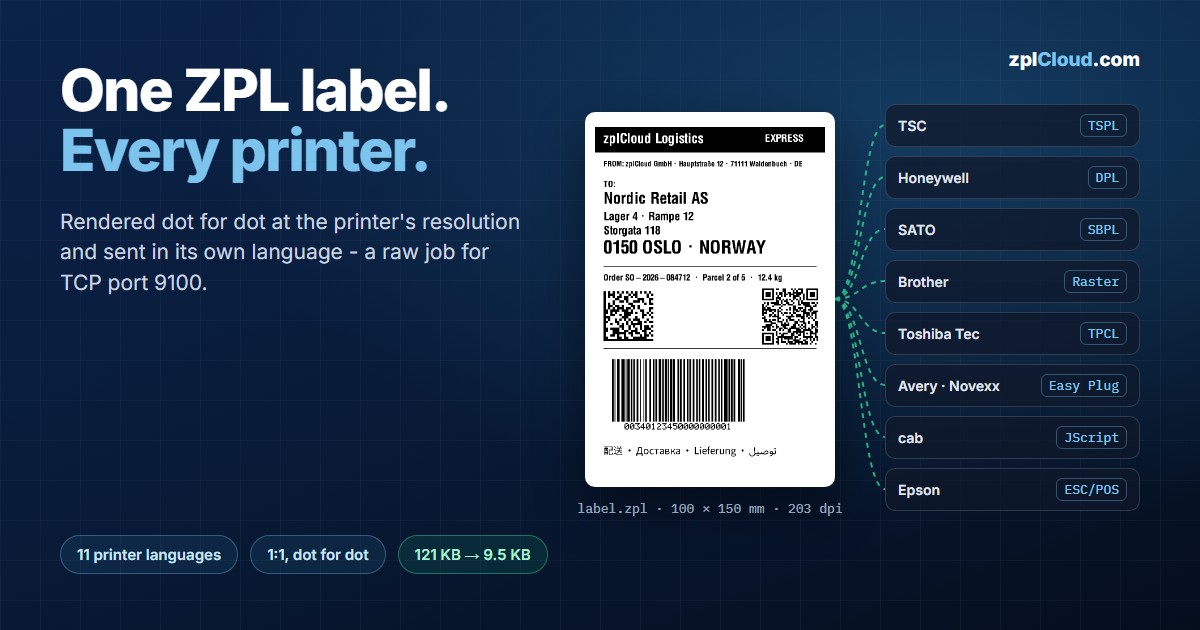
ZPL is the most widely used label language there is, and it was written for Zebra printers. That is fine until the warehouse is not all Zebra. A TSC printer came with a cheaper offer, the plant in the next country runs SATO, packing uses a Brother QL on every desk, the print-and-apply line has Avery Dennison or Novexx heads, and returns are printed on the office laser. The labels, however, exist exactly once: as ZPL, generated by the ERP, the shop or the zplCloud designer.
This guide shows how to get that one ZPL label onto all of those printers - identical, dot for dot - and what to watch out for.
Three ways to put ZPL on a printer that does not speak ZPL
1. Emulation. Many manufacturers ship a ZPL emulation: Honeywell ZSim, SATO SZPL, Godex GZPL, Citizen Cross-Emulation, TSC and cab ZPL modes. For simple labels it works. For everything else, an emulation is a re-implementation of ZPL by someone else: font metrics, barcode widths, text wrapping in ^FB fields, ^GFA graphics and stored fonts behave slightly differently, and you end up testing every template on every model.
2. Translating commands. A converter rewrites ^FO…^A0…^FD into the text and barcode commands of the other language. That only works for commands that have an equivalent, and the printer then uses its fonts and its barcode generator. The result is similar, not identical.
3. Sending a picture. The label is rendered once, at the resolution of the target printer, and sent as a monochrome bitmap in that printer's own graphics command. Every printer language has one. The printer no longer interprets anything - it only prints dots. Fonts, Unicode, logos and barcodes look exactly like the preview.
zplCloud uses the third way, in two variants: as an image file for everything with a driver, and as a raw job in the printer's language for everything on the network.
Variant 1: PNG, JPG or PDF
For office printers, e-mail attachments and archives, the label simply becomes a file:
- ZPL to PDF renders one page per label, or places the labels at their original size on A4 or Letter sheets with cut lines - the quickest way to print a return label on the office laser.
- ZPL to PNG and ZPL to JPG render single labels at 203, 300 or 600 dpi, for example for a shop system that prints through a driver.
Whatever prints the file prints the same picture. The limit of this variant is the driver in between: it scales, it adds margins, and it needs a computer.
Variant 2: the printer's own language, as a bitmap
For label printers on the network there is no need for a driver. The printer tools and the matching API endpoints build a finished job that goes straight to TCP port 9100:
1. Render. The zplCloud engine draws each ^XA…^XZ label at the resolution of the target print head - without anti-aliasing, the way a thermal head prints. A one-dot line stays exactly one dot wide.
2. Reduce to 1 bit. Every dot is black or white.
3. Wrap. The bitmap goes into the graphics command of the target language, together with the few commands the job needs to print.
4. Send. The file is sent unchanged to port 9100 of the printer.
| Printers | Language | Tool | Image command | Compression |
|---|---|---|---|---|
| TSC, Printronix T-series | TSPL | ZPL to TSPL | BITMAP | PCX (DOWNLOAD + PUTPCX) |
| Honeywell, Datamax-O'Neil | DPL | ZPL to DPL | <STX>I + image field | always PCX |
| SATO | SBPL | ZPL to SBPL | ESC GB / ESC GH | PCX (ESC GP) |
| Zebra EPL printers | EPL2 | ZPL to EPL2 | GW | - |
| Zebra and Honeywell mobile | CPCL | ZPL to CPCL | CG / EG bands | PCX (PCX) |
| Epson TM, Star, Bixolon | ESC/POS | ZPL to ESC/POS | GS v 0 | - |
| Brother QL, TD-4, P-touch | Brother raster | ZPL to Brother raster | raster lines | TIFF PackBits |
| HP LaserJet and PCL lasers | PCL 5 | ZPL to PCL | ESC*b#W | TIFF PackBits |
| Avery Dennison, Novexx | Easy Plug | ZPL to Easy Plug | #YIB | RLE (#YIR) |
| Toshiba Tec | TPCL | ZPL to TPCL | {SG;…} | TOPIX |
| cab | JScript | ZPL to JScript | image upload + I field | PCX |
Each job follows the manufacturer's programming manual, and every language is tested by decoding the finished job back into a bitmap that has to match the rendered label dot for dot - including the worked examples from Toshiba's TOPIX and Novexx's RLE documentation.
How much data does a picture need?
A picture is bigger than ZPL. The honest numbers, for a typical shipping label of 100 × 150 mm at 203 dpi (812 × 1,218 dots) with text, a DataMatrix, a QR code, a GS1-128 barcode and a line of Japanese, Russian and Arabic text:
| Job | Uncompressed | Compressed |
|---|---|---|
| ZPL source (for comparison) | 859 bytes | - |
| TSPL | 121 KB | 52 KB (PCX) |
| EPL2 | 121 KB | - |
| SBPL | 122 KB | 52 KB (PCX) |
| DPL | - | 52 KB (PCX) |
| CPCL | 81 KB (blank rows skipped) | 52 KB (PCX) |
| JScript | 124 KB (BMP) | 52 KB (PCX) |
| Brother raster, TD-4420DN | 128 KB | 45 KB (TIFF) |
| PCL at 300 dpi | 64 KB (blank rows skipped) | 44 KB (TIFF) |
| Easy Plug | 121 KB | 16 KB (RLE) |
| TPCL | 121 KB | 9.5 KB (TOPIX) |
Three things stand out:
- Uncompressed is about 1 bit per dot. 812 × 1,218 dots are 121 KB, whatever the language.
- Compression that looks at neighbouring rows wins. PCX and PackBits only compress within one row. Toshiba's TOPIX sends only the bytes that changed from the previous row, and Easy Plug's RLE repeats identical rows - labels have a lot of both.
- On a network it hardly matters. 121 KB take about 10 ms on 100 Mbit Ethernet. Compression pays off on Wi-Fi and Bluetooth, for batches of thousands of labels and for printers with little receive buffer.
The website tools show the size of every job, and with compression on, how much it saved.
Step by step
On the website, no account needed:
1. Open the tool for your printer, for example ZPL to TSPL.
2. Paste the ZPL, or open the .zpl file.
3. Choose the resolution of the printer (203, 300 or 600 dpi; Brother: the model).
4. Optionally switch on compression, then convert.
5. Check the preview - it shows exactly the dots that will be sent - and download the job.
6. Send it to the printer:
# Linux / macOS
nc -q 1 192.168.1.50 9100 < label.tspl
# Windows PowerShell
$c = [Net.Sockets.TcpClient]::new('192.168.1.50', 9100)
$b = [IO.File]::ReadAllBytes("$PWD\label.tspl")
$c.GetStream().Write($b, 0, $b.Length); $c.Close()
Through the API, for your own software: every tool is an endpoint POST /v1/tools/zpl-to-<language> on api.zplcloud.com. The response is the raw job:
jq -Rs '{zpl: ., dpi: 203, compress: true}' label.zpl \
  | curl -X POST https://api.zplcloud.com/v1/tools/zpl-to-tpcl \
      -H "X-API-Key: $ZPLCLOUD_API_KEY" -H "Content-Type: application/json" \
      --data-binary @- -o label.tpcl

nc -q 1 192.168.1.60 9100 < label.tpcl
Files with several labels become one job with several labels; the header X-ZplCloud-Label-Count tells you how many. All fields and the exact commands per language are in the API reference.
Printing every day: zplCloud CLI, watch folders and remote printers
nc is fine for a test. For daily printing, the free zplCloud CLI takes care of the one thing that matters with these jobs: they contain binary image data and have to reach the printer byte for byte - no text encoding, no line break added at the end. The CLI does that over the network, over USB, from a watch folder and through its agent to printers in other networks.
Send a finished job - no account needed:
zplcloud send --target 192.168.1.50 --file label.tspl
zplcloud send --usb --file label.bin      # Brother QL on USB
The CLI recognises the file names the tools use (.tspl, .epl, .dpl, .sbpl, .cpcl, .escpos, .bin, .pcl, .ezp, .tpcl, .jscript) and sends them unchanged; --raw does the same for any other file.
Convert and send in one step - the CLI calls the API for you:
zplcloud send --target 192.168.1.50 --file label.zpl --language tspl --dpi 300 --compress
Watch folder: the ERP keeps writing ZPL. The agent (zplcloud proxy) watches a folder and turns every ZPL file into the printer's language before it prints. The software that produces the labels does not change at all - it still writes ZPL files, and the TSC printer receives TSPL:
{
  "name": "tsc-shipping",
  "enabled": true,
  "folder": "/labels/tsc",
  "pattern": "*.zpl",
  "targetHost": "192.168.1.50",
  "convert": { "language": "tspl", "dpi": 300, "compress": true }
}
Remote printers: from the cloud to a printer in another network. The agent keeps one outbound connection to zplCloud, so a printer in another warehouse, a store or at a customer can be reached without opening a port. Your software calls one endpoint - with a finished job, or with the ZPL and the language:
curl -X POST https://api.zplcloud.com/v1/remote-printers/4/raw \
  -H "X-API-Key: $ZPLCLOUD_API_KEY" -H "Content-Type: application/json" \
  -d '{"zpl": "^XA^FO50,50^A0N,40,40^FDHello TSC^FS^XZ", "language": "tspl", "dpi": 203}'
The agent passes the job on over TCP 9100 or USB and reports back whether it arrived.
| Where the job goes | Command or endpoint |
|---|---|
| Printer on the local network | zplcloud send --target <ip> --file label.tspl |
| USB printer | zplcloud send --usb --file label.bin |
| ZPL files from ERP, shop or carrier software | watch folder with "convert": { "language": "tspl" } |
| Printer in another network | POST /v1/remote-printers/{id}/raw or zplcloud send --remote-printer <id> |
| Watch folder through the API | POST /v1/print/folder with language or base64 |
You need CLI and agent version 1.2.26 or later; older versions read every file as text and would break the image data. Printers on TCP already work through agents from 1.2.22.
What to watch out for
- The resolution has to match. A label rendered for 203 dpi prints about a third smaller on a 300 dpi printer. The tools only offer resolutions that real print heads have, so the size stays 1:1 - choose the one of your printer.
- Media settings stay in the printer. The jobs deliberately do not overwrite the stored gap, sensor or black mark settings. Set the printer to the label size once, the way you would for any other job.
- Barcodes scan like the original. A bitmap barcode is exactly as wide as ZPL made it, because the bars were already whole dots. That is only true at the right resolution - another reason to pick the printer's dpi.
- Print one test label per model. Firmware versions differ in details: how they read PCX images, the image origin on Easy Plug printers, the ribbon setting on Toshiba. The tools show these notes next to each job.
- Brother needs the model. Head width, margins and media come from Brother's command reference; the label is centred on the narrowest media that fits. P-touch tape printers print across the tape.
- If a printer speaks ZPL natively, send ZPL. It is smaller and the printer can use its own fonts. The bitmap route is for the printers that cannot - or for the labels where "almost identical" is not good enough.
When is an emulation good enough?
If the label consists of a few lines of Latin text and a Code 128, and the printer has a ZPL emulation, try it first. Once Unicode text, TrueType fonts, logos, ^FB text blocks or a mixed fleet come in, the bitmap is the safer choice: one rendering, one result, on every printer.
FAQ
Does the printer need special firmware?
No. The jobs only use the standard graphics commands of each language, which every printer of that family understands.
Can the barcodes still be scanned?
Yes. The barcodes are drawn by the zplCloud engine with exact dot widths and printed dot for dot. Check them with Check Barcode if you want to be sure.
Is the text still text on the printer?
No. The printer receives a picture. That is the point - no font on the printer can change the layout - but it also means the printer cannot fill in counters or fields itself. Render one label per data record instead, which the API does in a single call for files with many labels.
Our software can only write ZPL files. Can it still print on a TSC or Brother printer?
Yes. Point it at a watch folder of the zplCloud agent with "convert": { "language": "tspl" } (or brother, dpl …). The agent converts every file before printing, and the software never notices that the printer is not a Zebra.
What about 180 dpi printers?
Supported where they exist: ESC/POS at 180 dpi for the Epson TM-T88 series, and the Brother P-touch models at 180 and 360 dpi.
Is it free?
The website tools are free and need no account, with fair-use limits for anonymous use. Through the API every label counts as a render; see pricing.
Try it with your own label: pick your printer in the tools, paste the ZPL and send the result to port 9100. If you manage a mixed fleet, the zplCloud platform keeps the designs in one place - and the printer tools make sure every printer gets the same label.